They are easy to duplicate, which allows unauthorized entry. Manual checking slows down the line and hurts the guest experience. Re-entry often requires wristbands, which adds cost. And tracking real attendance becomes difficult.
On top of that, many organizers depend on ticketing providers to design, print, and distribute tickets, an expensive option for smaller events.
In many cases, events lose money and control because tickets get copied, shared, or faked.
The good news is that these problems are easy to solve. With online SaaS tools like an entry pass maker, and a smartphone, you can create secure tickets on your own.
Secure event tickets use unique codes that can be scanned and validated at the gate. This prevents duplicates, speeds up entry, and lets you track attendance in real time.
In this article, you’ll learn what makes a ticket secure and how to design, create, distribute, and authorize tickets step by step.
A. What makes an event ticket secure?
A secure event ticket is not just a piece of paper or a PDF. It has features that stop people from copying, sharing, or reusing it. At the core, a secure ticket has one unique code per guest. This code is scanned at the entrance and marked as used.
If someone tries to reuse the same ticket, the system will block it.
Here are the main things that make a ticket secure:
1) A unique code for every ticket
Each guest gets a different QR code or barcode. No two tickets should be the same.
2) Scan validation at entry
When the ticket is scanned, the system checks if it is valid. If it was already used, the gate staff will know instantly.
3) One scan = one entry rules
Secure ticket systems can limit how many times a ticket can be scanned. This stops screenshots and forwarded tickets from working.
4) Real-time scan tracking
You can see how many people have entered and when. This helps with both security and staffing.
In simple terms, a secure ticket is one that can be verified and locked after use. If a ticket cannot be validated, it is not truly secure.
Using this technology, it is possible to generate secure single-use event tickets. Here is how the process works:
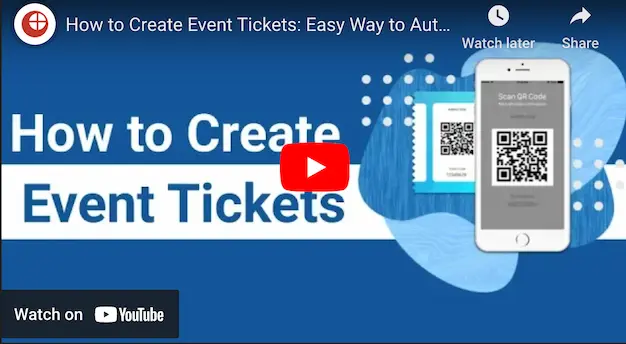
1. Using an online ticket generator, the event organizer creates event tickets that are QR Code based tickets. Each ticket has a QR Code encoded with a unique ID or a serial code
One can also integrate their registration system with a ticket generation system via an API. This will allow you to auto-generate event tickets.
3. The event organizer then needs to download a mobile application (Google Play or App Store) to scan tickets and authorize the entries valid, invalid, or duplicate
And the best part is that it is a contactless technology. So, you don't need to worry about the health of attendees and your colleagues.
4. Using the online ticket generator dashboard, the organizer can get reports on event attendance.
So using QR Code-based tickets via online tools, it is not only easy to manage entry but also it is affordable. Plus, this way you can create contactless event tickets to ensure security.
Set Up Event Ticketing and Distribution in Minutes!
First 10 tickets free | Free account | No credit card required
C. How to generate secure event tickets with QR Codes?
Now comes the actual question how to make QR Code-enabled secure tickets?
To create them, you need an online ticketing technology such as Ticket Generator. Using Ticket Generator for demo purposes, here are some easy steps that you need to follow to create event tickets:
1. Create Event
To create your event, go to Ticket Generator and first, create an account. All new users get the first 10 ticket credits (1 credit = 1 ticket) free of cost. These credits will allow you to easily test if the tool meets your requirements.
Next, click on the Create New Event option. When finished, click Create. An event is created.
To create your event, you need to fill in the following details:
Event Name (maximum 50 characters)
Date & Timings
Ticket Activation Date & Time: Event coordinators will be able to validate tickets only after this specified time
Timezone
Venue (maximum 75 characters)
Note that these events details will be printed on the tickets as well. So enter content accordingly.
The event will be created and it will be visible on the Manage Event dashboard. You can then proceed to the Design and Generate Event Tickets section.
There are various ticket designs available. But depending upon your event, you need to select an appropriate design. With Ticket Generator, you can choose from the following two options to design custom tickets:
I. Upload own design
Say you already have a ready-made design template. And you want to add a layer of security by adding a QR Code to it. Or say, you want to add unique information on each ticket. With this option, you can do it very quickly and easily.
You can upload your ready-made design template in PNG, JPEG, and JPG format. The image size should not exceed 5MB.
Now, you can place a QR Code and ticket ID on it. Note that these elements are movable and resizable. That is, you can place them anywhere on the ticket.
You can also add variable information (if any) blocks by clicking on the + sign. Here, you can specify the text color and resize the text.
In addition, you can also edit the Header and Value text to view how actual data will look once ticket data is uploaded and tickets are generated.
Note that the actual data of the Header and Value will be taken in subsequent steps.
Now let's go on the second design option.
II. Edit design
In case you do not have a ticket design, this section allows you to customize the design of your ticket from the scratch. So, you can choose from the following design options:
a. Ticket Background
Under this feature, you can design and edit the background in two ways.
Background image: You can add a background image by uploading it from the system. Or by pasting the image URL, in PNG, JPEG, or JPG format. The image size should not exceed 5 MB
Background Color: You can also add a solid background color by either specifying a HEX Code or a CMYK color.
b. Brand Logo
You also have the option to upload a brand logo. You can either upload the image from your system or paste the image URL in PNG, JPEG, or JPG format. The image size should not exceed 5 MB.
c. Additional Event Details
In addition to the event details added previously, you can also add:
Event description, tagline, or any other useful information: Note that this information will go directly under the event title. The information should not exceed 100 characters.
Note: This could be terms, disclaimers, etc. This information will go on the bottom of the ticket. Specify a maximum of 100 characters for best results
III. Select from Template
The third option is "Select from template". Here you will see a number of ready-made templates to choose from.
In a similar manner to your previous design option, you can add variable information by clicking on the + sign.
Once you have finalized the design of the ticket, click on Preview. You will see the layout of your ticket with the QR Code and a serial code number beneath it.
If you wish to make any changes, click on Edit. If not, proceed to the next step.
3. Delivery method
You can specify the manner in which you want the tickets to be exported. Here, you can choose from the following four options:
I. Generate Form Link
This option allows you to design and share your own event registration page. You can design it by adding images, event description, details, specifying the form fields, and customizing the button text.
For more information, you can refer to this detailed guide on event registrations.
II. Generate & Download
Here, you can download printable event tickets. This is the step, where you can upload the data of variable information in CSV, XLS, or XLSX format.
Using this option, your tickets will be generated in PDF format (1 PDF per ticket) and will be available for download in the Manage Events section.
Here is an image of a sample ticket:
III. Generate & Send
Here you can choose from the following three options:
Send tickets by email only
Instead of downloading the tickets and printing, you also have the option to directly email the tickets to the recipients, provided you have the email addresses.
Using this option, you can either upload a data file with column A being the attendee email address. Column B onwards, you can specify variable information ( if any).
Or you can manually enter data by filling the information in the given grid.
You can also customize the email subject, body, and reply-to option. You can test by sending a sample email.
Send tickets by SMS only
Here, you can send the tickets to your guests via SMS. You can specify up to 1,000 phone numbers. You can either upload a data file or manually type/paste in the given grid. Once done, the ticket will automatically be sent to the recipients.
Your guests will receive a ticket link via SMS. Upon clicking, they will be able to see the tickets and even download it.
Send ticket by both email and SMS
Here, you can send tickets by both email and SMS. Again, you can either manually type the data or upload a data file. And the tickets will be sent both by email and SMS to your guests.
Here too, you can customize the email body.
Besides, if you want to add variable information such as ticket category, seat number, and hall number, then you need to add this data to the file you are uploading.
In this option, you can generate tickets programmatically in real-time. That is, you can integrate your registration system with the Ticket Generator ticketing system.
You can generate and distribute single tickets to the guests. They come in handy in two critical situations:
1. Additional guests at the venue at the last moment
Say you've created the tickets and delivered them to your guests. On the day of the event, you see a couple of guests who have walked down the venue at the last moment and you need to give them the tickets too.
What would you do? You'd certainly not want to create a new batch of tickets altogether. Don't worry. Ticket Generator has got you covered.
It allows you to create single event tickets in a few minutes. Here's how:
2. From the dashboard, click on the event for which you want to create these tickets.
3. Now, click on Guest Tickets tab.
4. Here, click on New Ticket(s) drop-down and select the Single Ticket option select the delivery method Download Ticketand Send Ticket as per your choice
5. Once selected, click Generate & Download (in case of Download Ticket) or click Generate & Send(in case of Send Ticket)
That's it. A new single ticket will be generated.
Using the same Guest Tickets tab, you'll also be able to find and resend the tickets to guests. This comes in handy if any guest didn't receive the pass the first time
2. Resending the tickets
Say you mailed the tickets to your guests but they, somehow, didn't receive them. Here again, the Ticket Generator can help you relocate their tickets and resend them the same. Here's how it works:
2. From the dashboard, click on the event for which you want to resend the tickets.
3. Now, click on Guest Tickets tab.
4. Click on Resend Ticket.
5. Now, you'll have to specify your preferred mode of searching for the guest's ticket. You can use the ticket ID to do it. Alternatively, you can also use the guest's email address or phone number which you entered while creating the tickets
6. Once you've entered these details, click Search. Now, you will see the ticket details
7. Click on View and you'll be asked to specify the guest's email ID or phone number. After submitting these details, click Resend.
Now, let's move ahead to detail how you can validate these tickets.
3. Quick security checklist before your event
Most ticket problems come from simple issues, shared links, screenshots, or duplicate prints. A secure ticket system should prevent these by default.
Before your event, make sure your ticket setup includes these basic controls:
1) One scan equals one entry
Each ticket should be marked as “used” after the first scan. This stops the same code from being reused.
2) Scan limits or re-entry rules
Some events allow re-entry, others don’t. Your system should let you set simple scan rules based on your event type.
3) Easy ticket re-issue
Guests sometimes lose their tickets. You should be able to resend or re-issue a ticket in seconds.
4) Real-time scan tracking
You should see how many guests have entered and when. This helps with both security and staffing decisions.
If your ticket setup can do these four things, your event entry will be far more secure and easier to manage.
E. How to validate event tickets?
In order to validate tickets generated from this system, you need to download the Ticket Validator app. You can either download it from Google Play or can ask for the app link that will be sent to your email.
Once you download the app, you need to follow these simple steps:
1. Login to Ticket Validator mobile using the ID and password of your Ticket Generator account
2. Select the event you want to test the tickets for. Choose Sample Event if you want to test how the responses will appear. Sample tickets are available in the Test Tickets section of the Ticket Generator web application
3. Point the scanner towards the QR Code on each ticket and check the response valid, invalid, or duplicate
Note that in case the QR Code on the ticket gets worn out due to water, dust, or any other reason, you will still be able to validate the ticket. This can be done by entering the unique serial code printed beneath the QR Code.
F. How to Manage and Track Event Attendance?
You can easily manage event attendance and track real-time analytics of your event. You just need to follow some easy steps:
1. Add Event Coordinators
Say your event is being organized on a large scale. It can be a summer event, prom party, new year event, or concert. And you need event coordinators to help you out. Using Ticket Generator, you can add event coordinators to help validate tickets at different entry points at your event.
For this, go to Ticket Generator Dashboard and click on Manage Events. You will see the details of event you have created so far. At the end of the table, you will see three dots. On clicking, you will see the option for Add/Edit Coordinator.
Here you can specify the email address of the coordinators. All coordinators will then receive an email invite and password. Using these credentials, the coordinators can login to the Ticket Validator mobile app.
2. Track Attendance
You can view analytics of your event from the Manage Event section.
From the list of events, choose the right event and view details. On the extreme right, you will see the option of View Analytics.
In this section, you can get the following data:
Percentage of people who attended the event
Number of tickets validated per coordinator
Attendance on the different time periods (by hours, days) of the event
Number of used, new, expired, and invalid tickets
Number of duplicate and re-entry allowed tickets
You can also download the data in CSV format.
Why Analytics are important
The data that you export will help give you useful insights such as:
Know the efficiency of coordinators at work: With it, you can track the number of tickets validated per coordinator. This can help determine the efficiency level of each coordinator
Know the best timings for your event: Through Analytics, you can know the peak hour of your event. And then optimize your activities likewise. For example, you can keep the most engaging activity or the most favorable schedule of your event at this time.
So, by now you know that Ticket Generator is your stop to manage entry easily, efficiently, and effectively.
With more than 90% of the population owning smartphones now, use QR Codes to provide a smooth and secure entry to your event.
Create event tickets with QR Codes now before any major event decisions are made.
Conclusion: Secure tickets mean smoother, safer events
Secure event tickets are no longer just for large concerts or major conferences. Today, even small and medium-scale events can use simple tools to create tickets with unique codes and scan validation.
This means:
No more duplicate or fake tickets
Faster entry lines
Clear attendance data
Better control over your event
Instead of relying on manual checks or expensive ticketing services, you can use an online event ticket maker to create, send, and scan secure tickets on your own.
If you want a smoother check-in experience and stronger event security, switching to secure digital tickets is one of the easiest upgrades you can make.
Start with a simple setup, test your scans before the event, and you’ll be ready for a faster, more organized entry on event day.
Set Up Event Ticketing and Distribution in Minutes!
First 10 tickets free | Free account | No credit card required
No. Each secure ticket has a unique code that is validated at the entrance. Once a ticket is scanned, it is marked as used, so duplicate copies or screenshots will not work after the first scan.
2. Can I limit entry to one scan per ticket?
Yes. Most secure ticket systems allow you to set scan limits. You can choose one-time entry or allow controlled re-entry based on your event needs.
3. What happens if someone shares their ticket or uses a screenshot?
If each ticket is validated and locked after the first scan, screenshots and shared tickets stop working once the code has been used. This prevents multiple people from entering with the same ticket.
4. What should I do if a guest loses their ticket?
You can resend the original ticket to the guest. If the ticket may have been shared, you can re-issue a new ticket and disable the old one to keep the entry secure.
5. Do secure tickets work for re-entry events?
Yes. You can set rules that allow multiple scans for the same ticket, which is useful for multi-day events or events where guests may need to leave and return.
6. Can I track attendance in real time?
Yes. Secure ticket systems show live scan data, so you can see how many guests have entered and when peak entry times occur.
7. Do secure event tickets work offline?
Many systems allow offline scanning. The scans are stored on the device and synced when the internet connection returns.
Yashika Tangri is an amazing marketing manager who operates from Trycon Technology's Noida office. Her name signifies success and fame, and she has certainly lived up to these expectations.
At work, Yashika is a highly efficient digital marketing organizer and a source of inspiration to her colleagues with her positive demeanor and professional work ethics. Despite being a lifelong student of science, Yashika decided to pursue a career in marketing in 2018.
After work hours, Yashika enjoys creating new playlists on Spotify, and she is an avid reader who finds solace in escaping reality through the pages of mythology books






.png)




.webp)

.svg)
.svg)